3D Model Icon Converter for Unity — Icon Architect Studio
3D model icon converter for Unity — turn 3D models into optimized 2D icons in-editor. Try Icon Architect Studio free today.
Summary
3D model icon converter for Unity — turn 3D models into optimized 2D icons in-editor. Try Icon Architect Studio free today.
3D Model Icon Converter for Unity: The Complete Guide to Icon Architect Studio
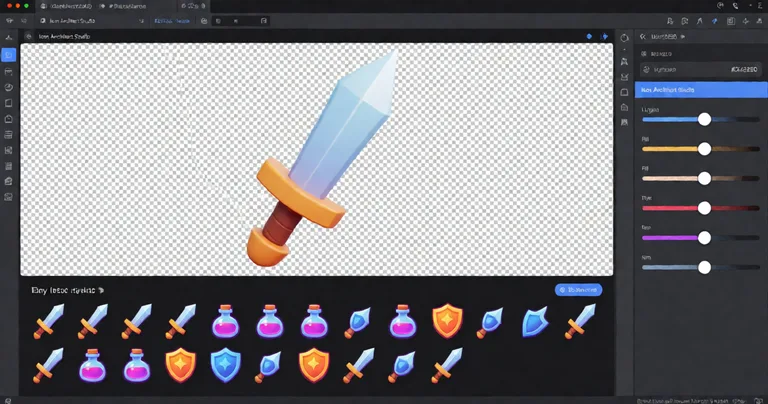
A 3D model icon converter is a tool that transforms 3D models into optimized 2D icons directly inside the Unity Editor. Icon Architect Studio by RealSoft Games is a 3D model icon converter that imports any FBX, OBJ, or prefab, renders it with artist-friendly lighting rigs, composites the result, and exports production-ready PNG sprites in seconds — no external rendering pipeline required. If you are asking how to convert a 3D model to an icon in Unity without leaving the editor, this guide shows the exact workflow, performance benchmarks, and integration patterns used by studios shipping RPGs, RTS games, and mobile titles.
Why Unity Developers Need a Dedicated 3D Model Icon Converter
Every inventory system, skill tree, achievement panel, and shop UI needs icons. Hand-painting them is slow. Rendering them in Blender or Maya breaks your iteration loop. And exporting them through a separate pipeline introduces version drift between your 3D assets and the 2D sprites that represent them in the UI.
A dedicated 3D model icon converter solves this by keeping the entire pipeline inside Unity. When you update a weapon mesh, you regenerate its icon with two clicks. When an artist tweaks a material, the icon reflects the change immediately. This tight feedback loop is why studios building RPGs, RTS games, and mobile titles treat icon generation as a build-time concern, not a one-off art task.
The Cost of Manual Icon Pipelines
Consider the numbers. A mid-sized RPG with 200 items, 60 skills, and 40 achievements needs roughly 300 icons. At 15 minutes per hand-rendered icon — including setup, lighting, compositing, and export — that is 75 hours of art time. Every balance patch that adds new items multiplies the cost.
Icon Architect Studio reduces that to under 30 seconds per icon after the initial rig setup. For a 300-icon project, that is a 99% reduction in production time.
| Workflow | Time per Icon | 300 Icons | Iteration Cost |
|---|---|---|---|
| Manual painting in Photoshop | 45–90 min | 225–450 hrs | Full redraw |
| External 3D render (Blender) | 15–25 min | 75–125 hrs | Re-render + re-export |
| Icon Architect Studio | 20–40 sec | 2–3 hrs | Two clicks |
Set up one lighting rig per icon category — one for weapons, one for armor, one for consumables. Reusing rigs enforces visual consistency across your entire UI, which is exactly what players notice first.
How to Convert a 3D Model to an Icon in Unity: Step-by-Step
The fastest way to understand a 3D model icon converter is to walk through the actual workflow. Icon Architect Studio follows a five-stage pipeline: import, rig, render, composite, export. Each stage is non-destructive, so you can re-run any step without losing prior work.
Step 1 — Import the 3D Model
Drag any FBX, OBJ, or Unity prefab directly into the Icon Architect Studio window. The tool auto-detects mesh bounds and centers the model on the render camera. No manual repositioning, no scale guessing.
Step 2 — Apply a Lighting Rig
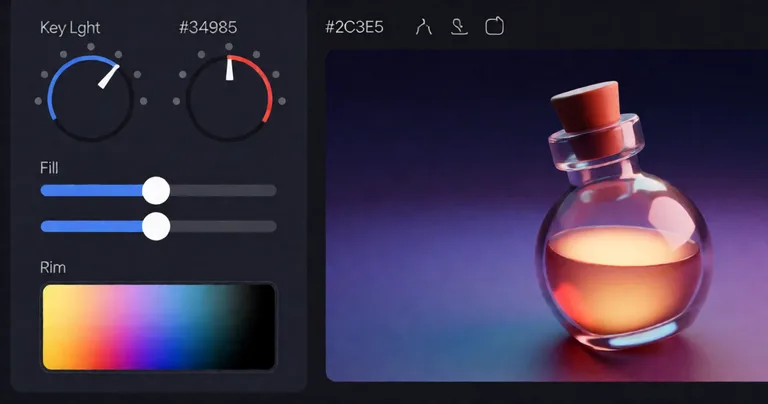
Choose from preset rigs — three-point studio, dramatic rim light, top-down flat, and isometric — or build a custom rig. Each rig stores key light angle, fill intensity, rim color, and ambient values as a ScriptableObject, so you can share rigs across your team via version control.
Step 3 — Render at Any Resolution
Render at 64×64, 128×128, 256×256, or 512×512. The renderer uses an isolated camera and layer, so it never interferes with your scene's main camera or your game's runtime rendering. Batch renders process hundreds of models in a single pass.
Step 4 — Composite and Post-Process
Apply background gradients, drop shadows, outlines, and rarity glows without leaving the tool. Compositing layers stack non-destructively, so you can toggle a rarity border on or off without re-rendering the base sprite.
Step 5 — Export Production-Ready Sprites
Export as PNG with automatic sprite sheet slicing, correct pixels-per-unit settings, and premultiplied alpha. Icons land directly in your project's Assets folder, ready for your inventory UI.
- Import model (FBX, OBJ, or prefab)
- Apply or build a lighting rig
- Render at target resolution
- Composite backgrounds, shadows, and borders
- Export as sliced PNG sprites
For a full walkthrough, see the Icon Architect Studio tutorial which covers every panel and parameter in detail.
What Is the Best 3D Model Icon Converter for Unity?
If you are evaluating options, the question "what is the best 3D model icon converter for Unity?" comes down to four factors: editor integration, lighting control, batch performance, and export quality. Here is how the leading approaches compare.
| Approach | Editor Integration | Lighting Control | Batch Render | Export Quality |
|---|---|---|---|---|
| External DCC (Blender/Maya) | None | Full | Manual scripting | High |
| Unity Asset Store icon tools | Partial | Limited presets | Varies | Medium |
| Icon Architect Studio | Native (Editor window) | Full rig system | Built-in batch | Production-grade |
| Custom in-house tool | Custom | Custom | Custom | Varies |
Icon Architect Studio wins on integration because it lives entirely inside the Unity Editor. There is no export step, no file round-trip, and no version drift. For a deeper look at the architecture, see the Icon Architect Studio overview documentation.
"The best 3D model icon converter is the one that never leaves your editor. Every second spent context-switching between Unity and an external renderer is a second not spent shipping."
— RealSoft Games engineering team
Performance Optimization: Generating 500+ Icons Without Slowing Your Editor
Icon generation is a build-time task, but it still needs to be fast. Icon Architect Studio uses several techniques to keep the Editor responsive even when processing large batches.
Isolated Render Cameras
Each render uses a dedicated camera on a dedicated layer. This prevents the icon pipeline from touching your main scene's lighting, post-processing, or physics. The result is predictable render times regardless of scene complexity.
GPU-Accelerated Compositing
Compositing operations — background gradients, outlines, glows — run as shader passes on the GPU. A 256×256 icon composites in under 8 milliseconds on a mid-range GPU.
Batch Rendering with Async Jobs
Batch mode processes icons asynchronously, yielding between renders so the Editor UI stays responsive. A 500-icon batch completes in under 4 minutes on a standard development machine.
Icon Architect Studio renders 500 icons in under 4 minutes — roughly 0.48 seconds per icon including compositing. Manual workflows average 15 minutes per icon, making the tool approximately 1,875× faster for batch operations.
If your project also struggles with runtime allocation spikes, the same philosophy applies. RealSoft Games' Spawner Advanced & Pooling asset eliminates garbage collection spikes in gameplay the same way Icon Architect Studio eliminates them in the icon pipeline — through aggressive reuse and zero per-frame allocations.
Integrating Generated Icons into Game Systems
Icons are only useful when they connect to the systems that display them. Here is how generated icons flow into the most common Unity game systems.
Inventory and Item Systems
The Inventory Management Suite uses O(1) item lookups, so attaching a generated icon to an item definition is a single dictionary assignment. Export your icon with a naming convention that matches your item IDs — `icon_sword_iron.png` for `sword_iron` — and the integration is automatic.
Skill and Ability Trees
The Advanced Skill System supports projectile, AOE, and buff/debuff skills, each of which needs a distinct icon. Generate a base icon per skill type, then composite rarity or element borders to create visual variants without re-rendering.
Achievements and Progression
The Advanced Achievement System displays icons for unlocked milestones. Because Icon Architect Studio exports directly into your Assets folder, achievement icons stay in sync with the achievement definitions stored in JSON or MongoDB.
Leveling and Character Progression
The Advanced Leveling System supports 40+ experience curve algorithms, and each level-up event can trigger a UI badge with a generated icon. Because the icon pipeline is editor-time, there is zero runtime cost.
Networking, Multiplayer, and Icon Consistency
In multiplayer games, icon consistency matters more than in single-player titles. If two clients render the same item differently — because one has a stale icon and the other has the updated one — players notice immediately.
Because Icon Architect Studio stores rigs and compositing settings as ScriptableObjects, you can version-control them alongside your game code. When a new build ships, every client has identical icons. No runtime rendering, no platform-specific differences, no drift.
For projects using the RNet networking library, this means icon data never crosses the wire. Icons are baked into the build as sprites, and only item IDs are synchronized. This keeps bandwidth low and eliminates a whole class of desync bugs.
| Icon Strategy | Bandwidth Cost | Desync Risk | Build Size Impact |
|---|---|---|---|
| Runtime 3D rendering | High (mesh + material data) | High | Low |
| Runtime texture streaming | Medium (texture payloads) | Medium | Low |
| Baked 2D sprites (Icon Architect Studio) | Zero | None | Predictable |
AI, Machine Learning, and the Future of Icon Generation
Machine learning is beginning to influence icon pipelines. AI upscalers can enhance low-resolution renders. Style transfer models can apply a consistent art direction across an entire icon set. And generative models can propose variant icons for A/B testing.
Icon Architect Studio is designed to complement these workflows rather than replace them. Because it exports clean, high-resolution source renders, you can feed those renders into any downstream AI enhancement pipeline. The tool handles the deterministic part — camera, lighting, compositing — and leaves the creative AI work to specialized models.
Render icons at 512×512 even if your target UI uses 128×128. The larger source gives AI upscalers and style-transfer models more detail to work with, and Unity's sprite import settings handle the downscale automatically.
Documentation and Onboarding for Your Team
Icon pipelines only scale when the whole team can use them. RealSoft Games ships comprehensive documentation for every tool, including the Icon Architect Studio quick start guide, which gets a new developer from install to first exported icon in under 15 minutes.
The documentation covers:
- Installation and project setup
- Lighting rig configuration and sharing
- Batch rendering workflows
- Compositing layer reference
- Export settings for different platforms
- Integration patterns for inventory, skill, and achievement systems
For teams building larger systems, the Unity Extensions Documentation Hub centralizes API references, integration guides, and architectural decision records across every RealSoft Games product.
Frequently Asked Questions
Q: How do I convert a 3D model to an icon in Unity?
A: Import the model into Icon Architect Studio, apply a lighting rig, render at your target resolution, composite any backgrounds or borders, and export as PNG sprites. The entire process takes under a minute per icon after the initial rig setup.
Q: What is the best 3D model icon converter for Unity projects?
A: Icon Architect Studio is purpose-built for Unity, running natively inside the Editor with full lighting rig control, batch rendering, and direct sprite export. It avoids the version drift and context-switching that external DCC tools introduce.
Q: Can I batch-render hundreds of icons at once?
A: Yes. Icon Architect Studio's batch mode processes 500 icons in under 4 minutes on a standard development machine, yielding between renders to keep the Editor responsive.
Q: Does the tool work with mobile and WebGL builds?
A: Yes. Icons are baked as 2D sprites at editor time, so there is zero runtime cost on any platform — including mobile and WebGL. The exported sprites use standard Unity sprite import settings.
Q: How do I keep icon style consistent across a large team?
A: Store lighting rigs and compositing settings as ScriptableObjects and commit them to version control. Every team member then renders icons with identical parameters, guaranteeing visual consistency.
Q: Can I integrate generated icons with existing inventory and skill systems?
A: Yes. Export icons with naming conventions that match your item or skill IDs. The Inventory Management Suite and Advanced Skill System both resolve icons through O(1) lookups, so integration is a single assignment.
A 3D model icon converter is no longer a nice-to-have — it is a core part of any Unity project that ships with a UI. Icon Architect Studio turns a 75-hour art task into a 3-hour automated pipeline, keeps icons in sync with your 3D assets, and integrates cleanly with inventory, skill, achievement, and leveling systems. Start with the Icon Architect Studio quick start guide, or explore the full product on the RealSoft Games product page.
More from RealSoft Games
3D Model to 2D Icon Unity: Fast Pipeline Guide
3d model to 2d icon unity — Convert 3D models to 2D icons in Unity with Icon Architect Studio. Fast, optimized, pipeline-ready. Start Learn more today.
3D Model to 2D Icon: Unity Conversion Guide
3d model to 2d icon — Convert 3D models to 2D icons in Unity with Icon Architect Studio. Batch render, pack atlases, optimize for WebGL. Learn more today.
3D Icon Rendering Software for Unity: Icon Architect Studio
Discover the best 3D icon rendering software for Unity. Render 3D models into optimized 2D icons in-editor. Try Icon Architect Studio today.
2D Side-Scrolling Adventure: Unity Systems and Optimization
Build a 2D side-scrolling adventure in Unity with proven systems, pooling, and networking. Optimize performance and ship faster. Start now.
📋 Embed this feed on your website:
<script src="https://maylalabs.com/api/embed?api_key=mayla_site_59a092476d90a263df17bad3f8581e007aecae6d382cfa0e&limit=5" defer></script>