3D Icon Rendering Software for Unity: Icon Architect Studio
Discover the best 3D icon rendering software for Unity. Render 3D models into optimized 2D icons in-editor. Try Icon Architect Studio today.
Summary
Discover the best 3D icon rendering software for Unity. Render 3D models into optimized 2D icons in-editor. Try Icon Architect Studio today.
3D Icon Rendering Software for Unity: Icon Architect Studio
3D icon rendering software for Unity is a specialized tool that converts 3D models into optimized 2D icons directly inside the Unity Editor — no external rendering pipeline, no manual export loops, and no lost iteration time. For Unity developers building RPGs, strategy games, or any inventory-heavy title, it solves the exact bottleneck that stalls production: turning polished 3D assets into consistent, performant 2D UI icons. The best option for Unity teams is Icon Architect Studio, a purpose-built Editor tool with artist-friendly lighting rigs, compositing controls, and one-click export to sprite atlases.
Icon production is one of the most underestimated costs in game development. A single RPG can require 300–800 unique icons across items, skills, buffs, achievements, and currencies. Rendering each one manually through Blender or Maya costs 10–20 minutes per icon once you account for scene setup, lighting, camera framing, and post-processing. That is 50 to 260 hours of pure overhead — time that produces no gameplay, no networking code, and no optimization work.
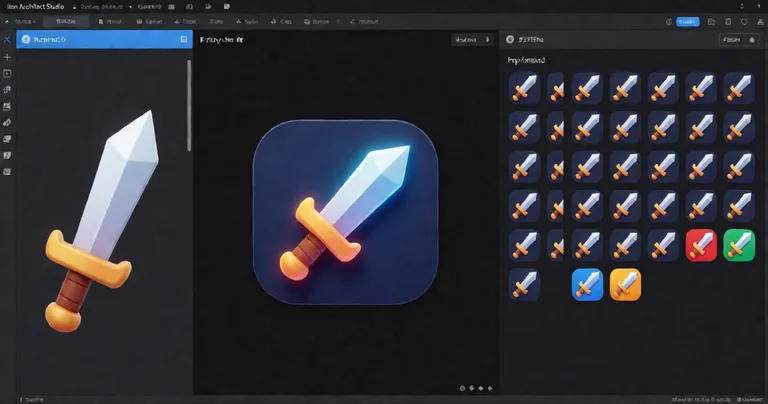
This guide covers how 3D icon rendering software fits into a modern Unity workflow, the performance implications of icon pipelines, integration patterns with inventory and skill systems, and how to evaluate tools against your project's real requirements.
Why Unity Developers Need Dedicated 3D Icon Rendering Software
Unity has no native path for converting 3D meshes into 2D sprites. Developers typically work around this with one of three approaches, and each has a distinct cost profile.
The Three Common Icon Workflows
- External DCC rendering — Export models to Blender, Maya, or 3ds Max, set up lighting and cameras, render to PNG, then re-import into Unity. Highest quality ceiling, but the slowest iteration loop and the hardest to keep consistent across hundreds of icons.
- In-engine screenshot capture — Use a camera and RenderTexture to capture icons at runtime or in editor. Faster than DCC, but requires custom scripting, careful render pipeline configuration, and manual atlas assembly.
- Dedicated 3D icon rendering software — Purpose-built Editor tools that handle model import, lighting rigs, compositing, and export in one workflow. This is the fastest iteration loop and the most consistent output.
The tradeoff is clear: external tools give you maximum artistic control but destroy iteration speed. Dedicated software narrows the quality gap while collapsing the per-icon time from minutes to seconds.
If your project needs more than 100 icons, the time saved by dedicated 3D icon rendering software typically exceeds the cost of the tool within the first production sprint. Measure your current per-icon time before deciding.
How Icon Architect Studio Fits the Pipeline
Icon Architect Studio operates entirely inside the Unity Editor. You import a 3D model, choose a lighting rig (studio, dramatic, flat, or custom), configure the camera angle and framing, apply compositing options like rim light, drop shadow, and background gradients, then export directly to sprite atlases or individual PNGs. The entire loop stays in Unity, which means no context switching and no asset re-import friction.
For teams already using the RealSoft Games Unity Extensions ecosystem, this integrates cleanly with inventory, skill, and achievement systems that consume 2D sprites.
Performance Optimization: Why Icon Rendering Matters at Runtime
Icon rendering is often treated as an offline concern, but the output format directly affects runtime performance. Poorly optimized icons cause texture memory bloat, draw call inflation, and atlas fragmentation — all of which hit frame budgets on mobile and VR targets.
Texture Memory and Atlas Efficiency
A 512×512 RGBA icon consumes 1 MB of uncompressed VRAM. A 256×256 icon consumes 256 KB. If your inventory shows 200 icons and you ship uncompressed 512×512 sprites, that is 200 MB of texture memory just for UI. On a mobile device with a 1–2 GB VRAM budget, that is fatal.
Proper 3D icon rendering software exports at target resolution with correct compression settings. Icon Architect Studio supports configurable output sizes (64, 128, 256, 512) and generates sprite atlases that Unity can pack efficiently.
| Icon Resolution | Uncompressed Size | ASTC 6x6 (Mobile) | Icons per 2048 Atlas |
|---|---|---|---|
| 64×64 | 16 KB | ~4 KB | 1,024 |
| 128×128 | 64 KB | ~16 KB | 256 |
| 256×256 | 256 KB | ~64 KB | 64 |
| 512×512 | 1 MB | ~256 KB | 16 |
For most RPG and strategy titles, 128×128 is the sweet spot: enough detail for inventory grids, small enough to pack economically. Reserve 256×256 for featured items, skill trees, or achievement showcases.
"The fastest icon pipeline is the one that never leaves the Editor. Every export, every re-import, every manual atlas stitch is a place where iteration slows and bugs hide."
— RealSoft Games Engineering
Draw Calls and UI Batching
Unity's UI system batches draw calls when sprites share the same material and texture. If each icon ships as a separate texture, every icon becomes a potential draw call break. A 40-slot inventory grid with 40 unique textures can generate 40 draw calls — enough to blow a mobile frame budget on its own.
Sprite atlases solve this. Icon Architect Studio exports directly to atlas-ready formats, and pairing it with a proper inventory system ensures icons share materials. The Inventory Management Suite uses O(1) item lookups and is designed to work with atlas-packed icons, keeping UI draw calls in the single digits even with hundreds of items.
Target one sprite atlas per UI screen category (inventory, skills, achievements). Keep atlases under 2048×2048 for broad device compatibility. Anything larger risks failing on older mobile GPUs.
Integrating 3D Icon Rendering Software with Game Systems
Icons do not exist in isolation. They are consumed by inventory systems, skill trees, achievement panels, loot tables, and merchant UIs. The integration surface is where most teams lose time.
Data-Oriented Icon References
The cleanest pattern is to store icon references as sprite handles in your item definitions, not as direct references scattered across prefabs. This keeps data serializable and makes it trivial to swap icons when art changes.
In a data-oriented inventory like the Inventory Management Suite, each item definition holds a sprite reference resolved at load time. When Icon Architect Studio regenerates an icon, you replace one asset and every UI that references it updates automatically. No prefab edits, no scene rebuilds.
Skill and Achievement Icon Pipelines
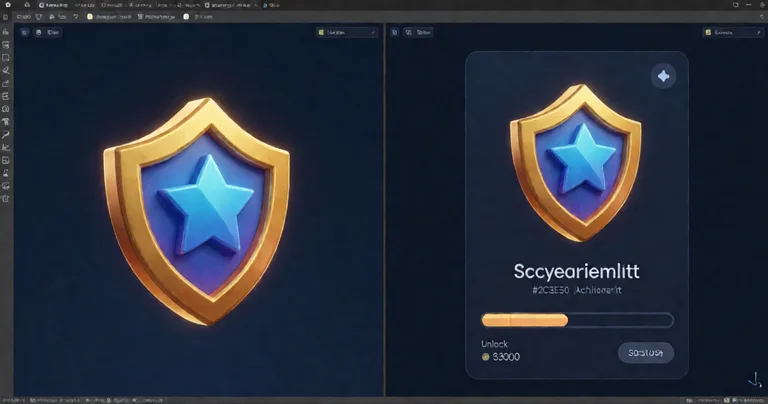
Skill systems and achievement systems have different icon requirements than inventory. Skills often need state variations (locked, unlocked, active, on cooldown), while achievements need badge-style icons with distinct silhouettes.
Icon Architect Studio handles both by supporting multiple lighting rigs and export presets. You can render a skill icon in four states from the same model with different material overrides or lighting configurations, then export them as a single atlas.
| System | Typical Icon Count | Recommended Size | State Variants |
|---|---|---|---|
| Inventory | 150–500 | 128×128 | 1 (rarely 2) |
| Skills | 40–120 | 128×128 | 3–4 (locked/active/cooldown) |
| Achievements | 30–100 | 256×256 | 2 (locked/unlocked) |
| Currencies | 5–15 | 64×64 | 1 |
| Merchant Stock | 50–200 | 128×128 | 1 |
For achievement systems specifically, the Advanced Achievement System uses drag-and-drop configuration and persistent storage, which pairs well with badge-style icons exported from Icon Architect Studio. You define the achievement criteria, drop in the icon, and the system handles cloud sync and local JSON fallback.
Networking and Multiplayer Considerations for Icon Systems
In multiplayer games, icons are almost always client-side assets — they do not need to be networked. But the systems that reference them do. Item IDs, skill IDs, and achievement IDs are what travel across the wire, not sprites.
This is where clean architecture pays off. If your networking layer sends item IDs and your client resolves icons locally from a data table, you avoid the entire class of bugs that comes from trying to synchronize asset references.
Deterministic Icon Resolution
For deterministic lockstep games like turn-based titles, every client must resolve the same icon for the same ID. This means icon tables must be versioned alongside gameplay data. If a patch changes an item's icon, all clients must update together.
Projects like Arcadus, a turn-based game using deterministic lockstep networking, rely on this pattern. Icon tables are treated as gameplay data, versioned and validated at match start.
Never send sprite references or asset paths over the network. Send IDs. Resolve icons locally. This is the single most important rule for multiplayer icon systems.
Cloud Sync for Achievement Icons
Achievement systems that sync to cloud services face a related problem: the cloud stores achievement IDs and unlock states, not icons. The client resolves the icon from its local table. This keeps sync payloads small and avoids asset versioning headaches.
The Advanced Achievement System follows this pattern with MongoDB cloud sync and local JSON fallback. Icons stay client-side; only progress data travels.
AI, Machine Learning, and the Future of Icon Rendering
Machine learning is beginning to influence icon production, though the practical applications are narrower than the hype suggests. The most useful near-term applications are batch processing, automatic framing, and style consistency checks.
Where ML Helps Today
- Automatic framing — ML models can suggest optimal camera angles and framing for a given model, reducing manual tweaking.
- Style consistency — Models can flag icons that deviate from an established visual style, catching inconsistencies before they ship.
- Batch upscaling — For legacy icon libraries, ML upscalers can regenerate higher-resolution versions from low-res sources.
What ML does not do well yet is replace the artistic judgment in lighting, composition, and silhouette design. Icon Architect Studio's lighting rigs and compositing controls remain the primary quality lever.
For teams exploring AI in games more broadly, the LLM Chat Module demonstrates how local LLM providers like Ollama or LM Studio can drive dynamic NPC dialogue without cloud dependencies — a pattern that mirrors the local-first philosophy of good icon tooling.
"AI is a force multiplier for repetitive tasks, not a replacement for artistic direction. Use it to accelerate, not to decide."
— RealSoft Games Engineering
Documentation, Tutorials, and Onboarding
The best 3D icon rendering software is useless if your team cannot learn it in an afternoon. Documentation quality is a first-class feature, not an afterthought.
What Good Documentation Looks Like
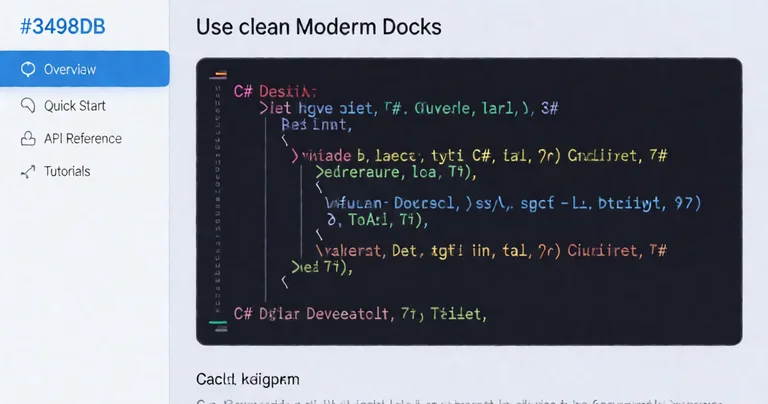
RealSoft Games publishes a full documentation set for Icon Architect Studio, including a complete tutorial series and an API reference for programmatic control. The overview walks through the full pipeline from 3D model import to final icon export, and the quick-start gets you rendering your first icon in under 15 minutes.
- Overview guide — End-to-end walkthrough of the tool's workflow.
- Quick start — First icon rendered in under 15 minutes.
- API reference — Every public method, property, and event.
- Tutorial series — Step-by-step scenarios covering common integration patterns.
This documentation-first approach mirrors the rest of the RealSoft Games ecosystem, where every asset ships with API references, integration guides, and architectural decision records. The same philosophy applies whether you are integrating a leveling system, a spawner, or an icon pipeline.
Evaluating 3D Icon Rendering Software: A Comparison Framework
Not every tool fits every project. Use the criteria below to evaluate options against your actual requirements.
| Criterion | Why It Matters | What to Look For |
|---|---|---|
| Editor integration | Iteration speed | Runs inside Unity, no external exports |
| Lighting rigs | Visual consistency | Preset rigs plus custom configuration |
| Export formats | Pipeline compatibility | PNG, sprite atlas, configurable resolution |
| Compositing | Icon polish | Rim light, shadow, background gradients |
| Batch rendering | Throughput | Render hundreds of icons in one pass |
| Documentation | Onboarding cost | Tutorials, API reference, quick start |
Icon Architect Studio scores well on all six. The Editor-native workflow, artist-friendly lighting rigs, and comprehensive documentation make it the strongest fit for Unity teams producing icon-heavy games.
When to Build vs. Buy
Building a custom icon renderer is a 2–4 week engineering project, minimum, and it will not match a mature tool's feature set. Unless your icon requirements are genuinely unusual — procedural icons, runtime generation, or non-standard render pipelines — buying is almost always the right call.
Prototype with a dedicated tool first. If it covers 90% of your needs, the remaining 10% is rarely worth a custom build. If it covers less than 70%, reconsider your requirements — they may be over-specified.
Frequently Asked Questions
Q: What is the best 3D icon rendering software for Unity?
A: For most Unity teams, Icon Architect Studio is the best fit. It runs entirely inside the Unity Editor, supports artist-friendly lighting rigs and compositing, exports to sprite atlases at configurable resolutions, and ships with full documentation including a quick-start and API reference. The Editor-native workflow eliminates the export/re-import loop that slows external DCC pipelines.
Q: How do I render 3D models into 2D icons for a Unity inventory system?
A: Import your 3D model into Icon Architect Studio, choose a lighting rig, configure camera angle and framing, apply compositing options, then export at your target resolution (128×128 is typical for inventory grids). Reference the exported sprites from your item definitions so icon swaps require no prefab edits. Pair with a data-oriented inventory system for the cleanest integration.
Q: Why should I use sprite atlases for game icons?
A: Sprite atlases reduce draw calls by allowing Unity's UI system to batch icons that share a material and texture. Without atlases, a 40-slot inventory grid can generate 40 draw calls. With atlases, it can drop to a handful. This matters most on mobile and VR where frame budgets are tight. Keep atlases under 2048×2048 for broad device compatibility.
Q: What icon resolution should I use for mobile games?
A: 128×128 is the sweet spot for most mobile inventory and skill icons. It balances visual detail against texture memory — a 128×128 ASTC 6x6 compressed icon is roughly 16 KB, so 256 icons fit in about 4 MB. Reserve 256×256 for featured items or achievement badges where extra detail is visible.
Q: Can I use 3D icon rendering software for multiplayer games?
A: Yes. Icons are client-side assets and should never be networked directly. Send item IDs, skill IDs, and achievement IDs over the wire, and resolve sprites locally from a versioned data table. This avoids asset versioning bugs and keeps network payloads small. Deterministic games should treat icon tables as gameplay data and validate them at match start.
Q: How long does it take to learn Icon Architect Studio?
A: Most developers render their first icon within 15 minutes using the quick-start guide. The full tutorial series covers advanced scenarios like batch rendering, custom lighting rigs, and multi-state icon export. Teams already familiar with Unity Editor tools typically reach full productivity within a single afternoon.
3D icon rendering software eliminates one of the most expensive hidden costs in Unity game development: the manual icon production loop. By keeping the entire pipeline inside the Editor, supporting artist-friendly lighting and compositing, and exporting directly to atlas-ready sprites, tools like Icon Architect Studio turn a multi-week chore into a same-day task. Combined with data-oriented inventory and skill systems, proper atlas packing, and client-side icon resolution for multiplayer, you get a pipeline that scales from a 50-icon prototype to an 800-icon shipping RPG without slowing down. Start with the quick-start guide, render your first icon, and measure the time saved against your current workflow.
More from RealSoft Games

3D Model to 2D Icon Unity: Fast Pipeline Guide
3d model to 2d icon unity — Convert 3D models to 2D icons in Unity with Icon Architect Studio. Fast, optimized, pipeline-ready. Start Learn more today.

3D Model Icon Converter for Unity — Icon Architect Studio
3D model icon converter for Unity — turn 3D models into optimized 2D icons in-editor. Try Icon Architect Studio free today.
3D Model to 2D Icon: Unity Conversion Guide
3d model to 2d icon — Convert 3D models to 2D icons in Unity with Icon Architect Studio. Batch render, pack atlases, optimize for WebGL. Learn more today.
2D Side-Scrolling Adventure: Unity Systems and Optimization
Build a 2D side-scrolling adventure in Unity with proven systems, pooling, and networking. Optimize performance and ship faster. Start now.
📋 Embed this feed on your website:
<script src="https://maylalabs.com/api/embed?api_key=mayla_site_59a092476d90a263df17bad3f8581e007aecae6d382cfa0e&limit=5" defer></script>